

Tired of struggling with prompt engineering for AI models like ChatGPT and Google Gemini? This new tool from Anthropic simplifies the process, allowing you to generate high-quality prompts from just a basic sentence. No more specialized prompt engineering skills required!
Step 1: Accessing the Prompt Generator
Accessing the prompt generator is straightforward and user-friendly. Follow these steps to get started:
Creating an Anthropic Account
First, navigate to the Anthropic console at console.anthropic.com. You will need to sign in or create a free Anthropic account. This process is quick and won't take much of your time.
Navigating to the Prompt Generator
Once logged in, you will be directed to the main dashboard. Look for the "Generate a Prompt" section. This experimental tool is designed to convert a simple description into a high-quality prompt, eliminating the need for complex prompt engineering.
Step 2: Setting Up an API Key
To use the prompt generator, you'll need to set up an API key. Setting up an API key is a crucial step to unlock the full potential of this tool. Follow these steps to get it done quickly.
Creating Your API Key
To begin, navigate to the API key section on the dashboard. Click on "Get API Key" and give it a name, such as "claude-prompt-key".
Copying and Storing Your API Key
Once you have created your key, copy it immediately. Store it in a secure location in case you need it for anything else in the future.
Step 3: Generating a Prompt from a Basic Sentence
Now that you have access, it's time to generate your first prompt. This tool makes it incredibly easy. Head back to the Dashboard and click the 'Generate a prompt' button.
Entering a Basic Sentence
In the "Generate a Prompt" section, type in a simple sentence that describes what you want to achieve. For example, you could type, "What is the best way to create a social media content calendar for Instagram"
Converting to a High-Quality Prompt
The tool will then transform your basic sentence into a high-quality prompt. This saves you the hassle of manually crafting intricate prompts, making prompt engineering accessible to everyone.
Generation Costs
Generating prompts costs a few cents each, and very cheap compared to the time saving this brings you. If you don't have a free coupon, you'll need to set up billing by adding a credit card. This ensures you can continue generating prompts without interruption.
Step 4: Editing and Customising Prompts
After generating a prompt, you may need to edit and customise it to better fit your needs. This tool makes that process straightforward and intuitive.
Editing Prompts
Once your prompt is generated, click on the "Start Editing" button. This will open an editable version of the prompt.
Identifying Editable Sections
The tool highlights sections in red where you need to input specific information. For example, if the prompt follows on from the social media content calendar example above, you will need to provide some additional information such as industry and goals.
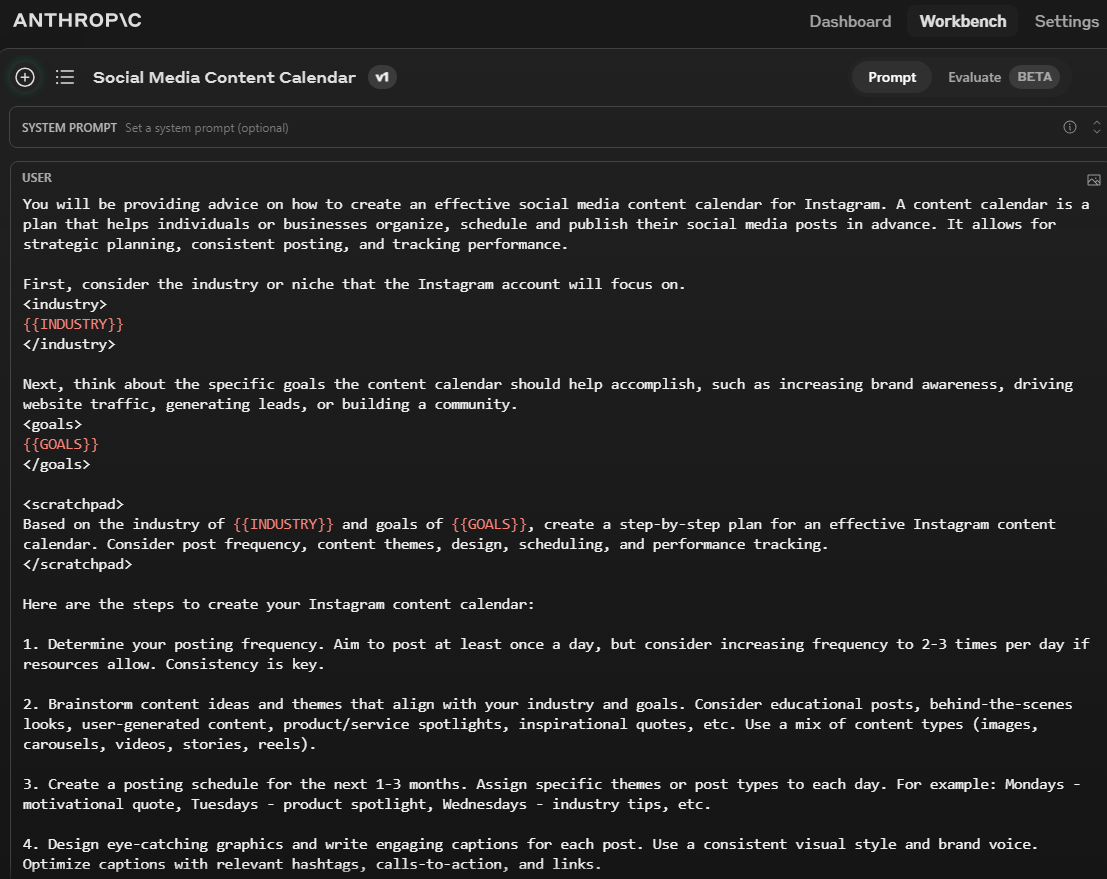
Customising Content
Next, fill in the required details. Replace the red placeholders with your own text, such as industry and goals. This ensures the prompt is tailored to your specific context. A quick tip: use the 'Variables feature' covered below to make this a quicker process, and still retain your prompt format.
Testing the Customised Prompt
Once you have customised the prompt, you can test it within the tool. Click "Run" (top right corner of the screen) to see how the AI responds to your edited prompt.
Using the Prompt with Different AI Models
You can use the edited prompt with various AI models like Claude, ChatGPT, or Google Gemini. Simply copy the user prompt and paste it into the AI platform of your choice.
Leveraging the Tool's Variables Feature
The tool also offers a variables feature, which allows you to set variables for specific sections. This is useful if you need to reuse the same prompt with slight variations.
Setting Variables
To set a variable, click on the "Set Variable" option marked with an icon that looks like: { } in the top right corner of the screen, and type in the required information. The tool will automatically replace the placeholders with your input.
Finalising the Prompt
Once all variables are set and the prompt is customised, you can finalise it. Remove any remaining brackets and ensure all sections are complete.
Saving and Reusing Prompts
After finalising, save your prompt for future use. This allows you to quickly generate high-quality prompts without starting from scratch each time.
To access these prompts in the future go back to the Dashboard and click on the 'Start prompting with Claude' button. In the top left of the screen under the hamburger menu icon, you can view your saved prompts history.
Step 5: Utilising the Prompt Library
Once you've mastered generating and customising prompts, the next step is to utilise the prompt library. This resource can save you time and effort.
Exploring the Prompt Library
The prompt library is a treasure trove of pre-made prompts for various purposes. You can find business prompts, personal prompts, and more.
Accessing Different Categories
Navigate back to the Dashboard and look for the 'Prompt library' button. Search or select a category that fits your needs. Options include business, personal, and creative prompts.
Reviewing User Prompts
Click on a prompt to view the detailed user prompt. These prompts are comprehensive and designed to cover different aspects of a query.
Generating Enhanced Prompts
Take a prompt from the library and input it into the prompt generator. This will transform it into a more detailed and effective prompt.
Editing and Fine-Tuning
After generating the enhanced prompt, you can further edit and fine-tune it. This ensures the prompt meets your specific requirements.
Saving Your Prompts
Once you have a prompt exactly the way you want, save it in your prompt library. This allows for quick reuse without needing to generate new prompts.
Leveraging Pre-Made Prompts
Utilising the prompt library helps streamline your workflow. It provides a solid starting point, which you can then customise as needed.
FAQ: Using Prompts Across Different AI Platforms
Wondering how to use your prompts across different AI platforms? Here are some frequently asked questions to help you out.
This new tool from Anthropic is a game-changer, making prompt engineering simple and efficient. Now you can focus on leveraging AI models like ChatGPT and Claude without worrying about the technicalities of prompt creation. By utilising these tips and resources, you can effectively use prompts across different AI platforms, enhancing your prompt engineering skills and achieving better results.
Signup to our blog for more tips on maximising AI.